Monday, August 28, 2017

"can't connect to this network": 3 easy ways

Internet access is essential for many users, and there have been reports that users are getting “Windows can’t connect to this network error  message in Windows 10 while trying to establish an internet connection and cannot connect to WiFi. This can be a big problem, but there are easy ways to solve Windows 10 can't connect to network error problem. You can try the following easy three ways to get connected to a network

Solution 1: Uninstall Your Network Adapter drivers

If you get the error "can’t connect to this network" on Windows 10, it is probably the problem of the wireless adapter drivers, for this issue, it is suggested to uninstall network adapter and allow Windows 10 to reinstall the driver again automatically. To do that, follow these steps:

  1. Press Windows Key + X and choose Device Manager from the list.
    Windows cannot connect to this network
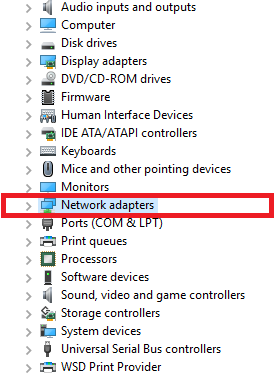
  2. In device manager go to double click on "Network adapters" and click uninstall on the respective network adapter. If asked  “Delete the driver software for this device” click OK
    Windows 10 cannot connect to this network
  3. After the driver is uninstalled, restart the computer. After restarting Windows 10 will automatically reinstall and fix the new adapter drivers. Now after installing network adapter drivers try to establish a network connection to see if you can establish connect to the network.

Solution 2: Forget the wireless connection


If you get “Windows 10 can’t connect to this network” error, the simple solution is to forget internet connection in windows 10 in order to solve this problem. To forget wireless network on Windows 10, do the following steps:
  1. Go to Settings and then to Network & Internet.
  2. Go to Wi-Fi section and click Manage Wi-Fi settings.
  3. Scroll down to the Manage known networks, select Wireless network and click Forget.
  4. After "Forget", connect to the same wireless network again and put the Wi-Fi password again.

Solution 3: Disable and enable your wireless connection 

To solve  Windows 10 can’t connect to this network error, just disable connection and enable it again. To do that, follow these steps:
  1. Go to  Network and Sharing Center.
  2. Click on Change adapter settings.
  3. On wireless connection (your connected Wifi connection) right click and select Disable.
    cannot connect to wifi windows 10
  4. Right-click the same connection again and choose Enable.
If all the above solutions don't work, maybe you should change your network adapter. Certain USB WiFi adapters are not compatible with the Windows 10, and if that is the case, you may have to replace/change your network adapter with a newer model to resolve Windows can’t connect to this network problem.

Share:

Wednesday, August 2, 2017

How to earn money on android in 2018

How to earn money on android 

Everyone wish to earn few extra bucks now and then. There are no apps that can make a huge amount of money but from the following online money making app for Android, you can earn a decent amount of real money without any efforts on your android smartphone. Generally, these apps provide a task to you, after completing a task which is very easy you get paid for the task you completed, for example, you can earn money by downloading apps on android. Following are the android apps that give you money.

1. CashPirate-Make & Earn Money

CashPirate is an application that transforms points into money. The users have to register and registered users can download and test applications, complete surveys, play web-based games and invite other friends to join. This is the easiest way to earn money on Android. You can increase earning by sharing your CashPirate referral code. If you add my CashPitare referral code  JMOTZW you will directly get 500 points as bonus.  
Share:

Saturday, January 5, 2013

How to turn on subtitles in Kmplayer or enable subtitles in Kmplayer

What is Subtitle

According to the definition, subtitles are captions displayed at the bottom of a movie or television screen that translate or transcribe the dialogue or narrative. In simple words subtitles allows to you understand multilingual movies.

How to get subtitles

Most popular websites to download subtitles for movies and tv series subtitles are
  1.     www.moviesubtitles.org
  2.     www.moviesubtitles.net
  3.     www.opensubtitles.org
  4.     www.subscene.com 
  5.     www.subtitlesbank.com 

Software to find subtitles

1. Find Subtitles 1.0

Find Subtitles 1.0  is a very simple app that will find English subtitles or other language subtitles for movies. 
All you need to do is right click on the movie file> Find Subtitles>, choose a language from the selection and click. Your web browser will open up, displaying a perfect set of subtitles for movies you want to download.

2. SubiT
SubiT is a free program that can search for subtitles from different sources. The objective of this SubiT software is to download the subtitle for movies in shortest possible time.  
subtitles for movies
3. Sublight
Sublight is a free software to download subtitles for movies that come with a good modern interface and ribbon menu. Sublight can search and download subtitles from multiple sources and can also edit, synchronize and publish subtitles online. 
download subtitles for movies


How to turn on subtitles in kmplayer, VLC and media player and Media Player classic

  1. Get subtitles for movie from the above websites or by using the software
  2. Copy both movie file and the subtitle  in one folder                                                                 Note: The name of the movie file and the subtitle file should be exactly same
  3. Open a media player capable of playing both video files and SRT subtitle files simultaneously. Examples include KM player, VLC Media Player, and Media Player Classic 
  4. Just run the video file and  subtitles start to appear  automatically

Tags: how to open subtitles in kmplayer


Share:

Saturday, March 3, 2012

How to Download Google Book in PDF format

How to Download Google Book in PDF format

Google books introduced by Google has a large database for full-text books and magazines. Google books have access levels, full access, partial access, and no access. In full access and partial access level you can read and download google books for free in pdf format. But the question is how to download google books. In this post, we will see various softwares available to download books from google books in windows and Mac OS.

Ways to Download Google books

This software is a freeware that allows you to save google book as PDF that has full access from google books. This software allows you to queue up multiple jobs and converts all of the downloaded books in PNG files. After downloading PNG files to can use this PNG files to form a book in PDF format. The interface of this software is simple and very easy you just need to enter the google book URL and select the output folder where you want to save PNG files after setting up the output folder just click download to download books from google books

Google book downloader 2.6

This software is also a freeware that supports Windows, Android and Mac OS. This software comes in three variants and the interface is very simple and user-friendly

a)       Google Books Downloader (for Windows)

This version for windows allows to download and save google books in three formats viz. PDF, JPEG or PNG format
         

b)      Google Books Downloader Mac: Google book downloader for Mac

This version for Mac OS has a limitation and allows to download and save google books only in PNG format.
Watch This video to know how to exactly download Google books in PDF format 

c)       Books Downloader: Google book downloader for android

This version allows you to download google books in pdf format only. In this version is easy to search book. You just have to enter Keyword, title or Authors name and click on search book
Google book downloader compared to google book Downloader Lite has more options for windows version. It not only allows you to download and save google books in three formats viz. PDF, JPEG or PNG format but also has an option to select the resolution which ranges from 350 px to 1280 px. Selecting higher resolution always fetch better output format. One can also adjust the size of downloaded google book by changing resolution i.e lower resolution will give output file with less size in megabytes while higher resolution will give output file with increase size in megabytes.

Google Book Downloader

In Google ebook downloader you can view google book online and download parts of the book or download the entire book in the PDF format. The interface is simple and easy to use as a browser. You just have to enter the desired URL and hit enter the book open in the Google ebook downloader browser interface as you scroll through the pages the pages are automatically saved and can be seen in ebook Pages List found. To save all the pages in PDF file you just have to Click on Save PDF file

These were the four simplest ways and solution for How to Download Google books in PDf format 

Share: